
How to Prevent Laptop Overheating During Heavy Daily Multitasking Guide
Picture this. You’ve got forty Chrome tabs open, a massive Excel sheet calculating macros, Slack pinging every four seconds, and a Zoom call running in the background. Suddenly, your keyboard feels like a hot skillet. The fans start screaming like a jet engine preparing for takeoff. Then, the stuttering begins. Your cursor freezes. You lose five minutes of your life waiting for the machine to catch up. I’ve been there, and frankly, it’s maddening. Here’s the ugly truth: most modern laptops are designed for form factor, not function. They prioritize thin profiles over thermal headroom. When you throw heavy multitasking at them, physics takes over. Silicon gets hot. Performance plummets. If you want to stop this cycle of thermal misery, you need to understand why your machine is choking and how to fix it before you fry your CPU.

- • Why Heavy Multitasking Cooks Your Laptop (And How Thermal Throttling Kills Productivity)
- • Hardware Adjustments That Actually Lower Core Temperatures
- ↳ 1. Ditch the Bed, Elevate the Base
- ↳ 2. Invest in a Reputable Cooling Pad
- ↳ 3. Clean the Dust Bunnies Out
- • Software and OS-Level Tweaks to Stop Background CPU Bloat
- • Advanced Strategies: Undervolting and Re-pasting
- ↳ Is it safe to use my laptop on my lap if it's overheating?
- ↳ How hot is too hot for a laptop CPU during multitasking?
- ↳ Do cooling pads actually work?
- ↳ Should I use software to monitor my laptop temperatures?
Key Takeaways & Quick Overview
AI Verified
- ✔How to prevent laptop overheating during heavy daily multitasking guide picture this.
- ✔You’ve got forty chrome tabs open, a massive excel sheet calculating macros, slack pinging every four seconds, and a zoom call running in the background.
- ✔Suddenly, your keyboard feels like a hot skillet.
- ✔The fans start screaming like a jet engine preparing for takeoff.
Why Heavy Multitasking Cooks Your Laptop (And How Thermal Throttling Kills Productivity)
Let’s clear up a massive misconception right out of the gate. People think opening a browser tab doesn’t cost much. Multiply that by fifty, add background update agents, cloud sync services, and local indexing tools, and your processor is running a marathon in flip-flops. Modern CPUs dynamically adjust their clock speeds based on workload—a feature you can read more about via Intel thermal specifications. When the temperature climbs past a critical threshold—usually around 95°C to 100°C—the system panics. It deliberately slows itself down to avoid literal self-destruction. That safety feature is called thermal throttling. It’s the silent killer of your daily workflow. You aren’t actually getting faster; you’re just paying top dollar for hardware that throttles down to the speed of a machine from 2012.
Trust me on this: ignoring the heat won’t make it go away. Over time, constant thermal expansion and contraction degrade solder joints, dry out thermal paste, and permanently degrade battery health. If your laptop sits on a soft surface all day, you are actively suffocating the intake vents.
Hardware Adjustments That Actually Lower Core Temperatures
You can’t cheat thermodynamics. Software tweaks only go so far if your hardware is physically choked by dust or bad ergonomics. Let’s fix the physical environment first.
1. Ditch the Bed, Elevate the Base
Beds, couches, and laps are thermal death traps. They block rubber feet designed to create space between the chassis and the surface, sealing off intake vents. If you want an instant 5-degree temperature drop for zero dollars, prop the rear of your laptop up on a book, a bottle cap, or an aluminum laptop stand. Giving those intake fans some breathing room changes everything.
2. Invest in a Reputable Cooling Pad
Not all cooling pads are created equal. Avoid the cheap plastic garbage with tiny, noisy fans that push virtually zero air. Look for active cooling pads with sealed foam gaskets that force air directly into the bottom vents, or passive aluminum stands that act as massive heatsinks. According to guidelines often discussed in IEEE thermal management standards, maintaining a stable ambient temperature around the chassis is critical for long-term component integrity.
3. Clean the Dust Bunnies Out
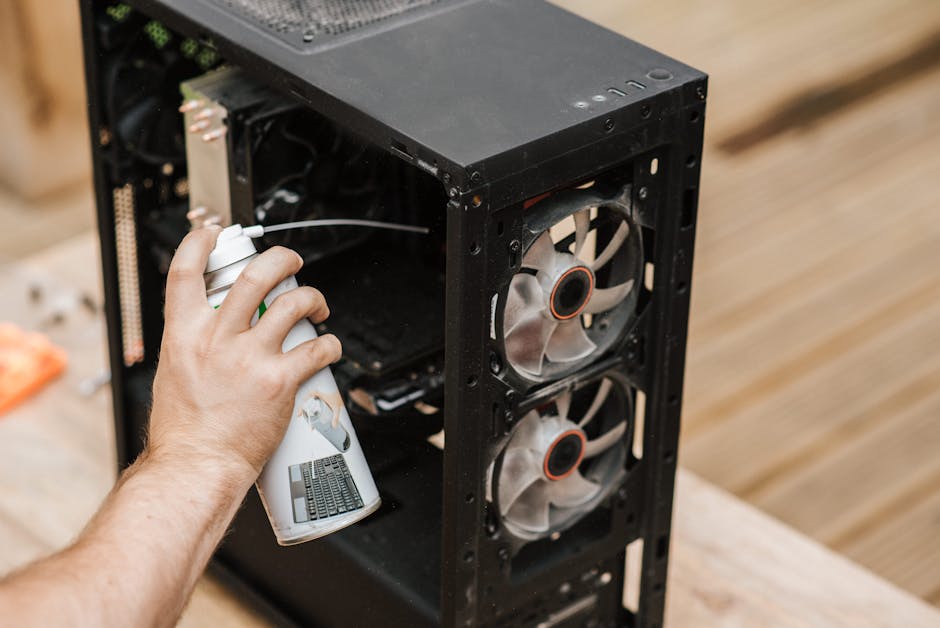
Open your laptop up once a year. If you can’t, at least blast the vents with compressed air while holding the fan blades still (spinning fans with compressed air can actually generate a reverse electrical current that fries your motherboard—don’t learn that the hard way). You’d be horrified at the carpet of dust trapped inside a machine used daily on a desk for twelve months.
Software and OS-Level Tweaks to Stop Background CPU Bloat
Hardware modifications keep the machine cool, but software habits determine how hard it has to work in the first place. You need to starve your CPU of unnecessary workloads.
- Kill Startup Applications: Open Task Manager (Windows) or Activity Monitor (Mac) and ruthlessly disable anything that launches at boot. Spotify, Discord, cloud updaters, and helper apps don’t need to run until you explicitly call them.
- Manage Browser Tab Hoarding: Browsers like Chrome and Edge are notorious RAM hogs that keep hidden background processes alive. Use extensions like “The Great Suspender” equivalents or built-in efficiency modes to put inactive tabs to sleep.
- Adjust Power Profiles: Don’t run your laptop on “High Performance” mode while sitting at a desk typing emails. Switch to “Balanced” or “Eco” modes to cap the processor’s maximum turbo frequency, which drastically reduces heat spikes during routine multitasking.
Advanced Strategies: Undervolting and Re-pasting
If you’re dealing with a high-end gaming laptop or a thin-and-light workstation that runs hot even when idle, it’s time to pull out the heavy artillery. Undervolting is the practice of lowering the electrical voltage supplied to the CPU without changing its clock speed. Because factory voltages are often set unnecessarily high to account for silicon lottery variations, reducing them can drop temperatures by 5 to 10 degrees Celsius instantly. Check if your specific processor and BIOS version support it, as manufacturers have increasingly locked down these controls for security reasons.
Beyond undervolting, consider replacing the factory thermal paste every two to three years. Stock paste dries out, cracks, and loses its heat-transfer efficiency. Applying a high-conductivity aftermarket compound or thermal graphite pad can resurrect a lagging, overheating machine and give it a whole new lease on life.
Frequently Asked Questions
Is it safe to use my laptop on my lap if it’s overheating?
It’s safe for you, but terrible for the laptop. Blocking the bottom vents causes temperatures to skyrocket, forcing thermal throttling and potentially degrading the battery over time. Always use a hard, flat surface.
How hot is too hot for a laptop CPU during multitasking?
Normal temperatures range from 40°C to 60°C during light tasks. Heavy multitasking will push it to 75°C–85°C. If you are consistently seeing temperatures above 95°C, your system is thermal throttling and needs immediate attention.
Do cooling pads actually work?
Yes, but only if they improve airflow to the intake vents. Passive aluminum stands work well by conducting heat away from the chassis, while active fan-based pads help force cool air into restricted bottom intakes.
Should I use software to monitor my laptop temperatures?
Absolutely. Tools like HWMonitor, Core Temp, or Macs Fan Control let you keep a real eye on what’s happening under the hood so you can catch thermal issues before they result in system crashes or hardware damage.